AI scene description for blind and low-vision viewers

Every scene, within reach

Beyond Dialogue brings together two platforms, CineSense and Beff, that describe what dialogue leaves out, such as movement, facial expressions and setting. Blind and low-vision viewers can follow the whole story through braille or voice.

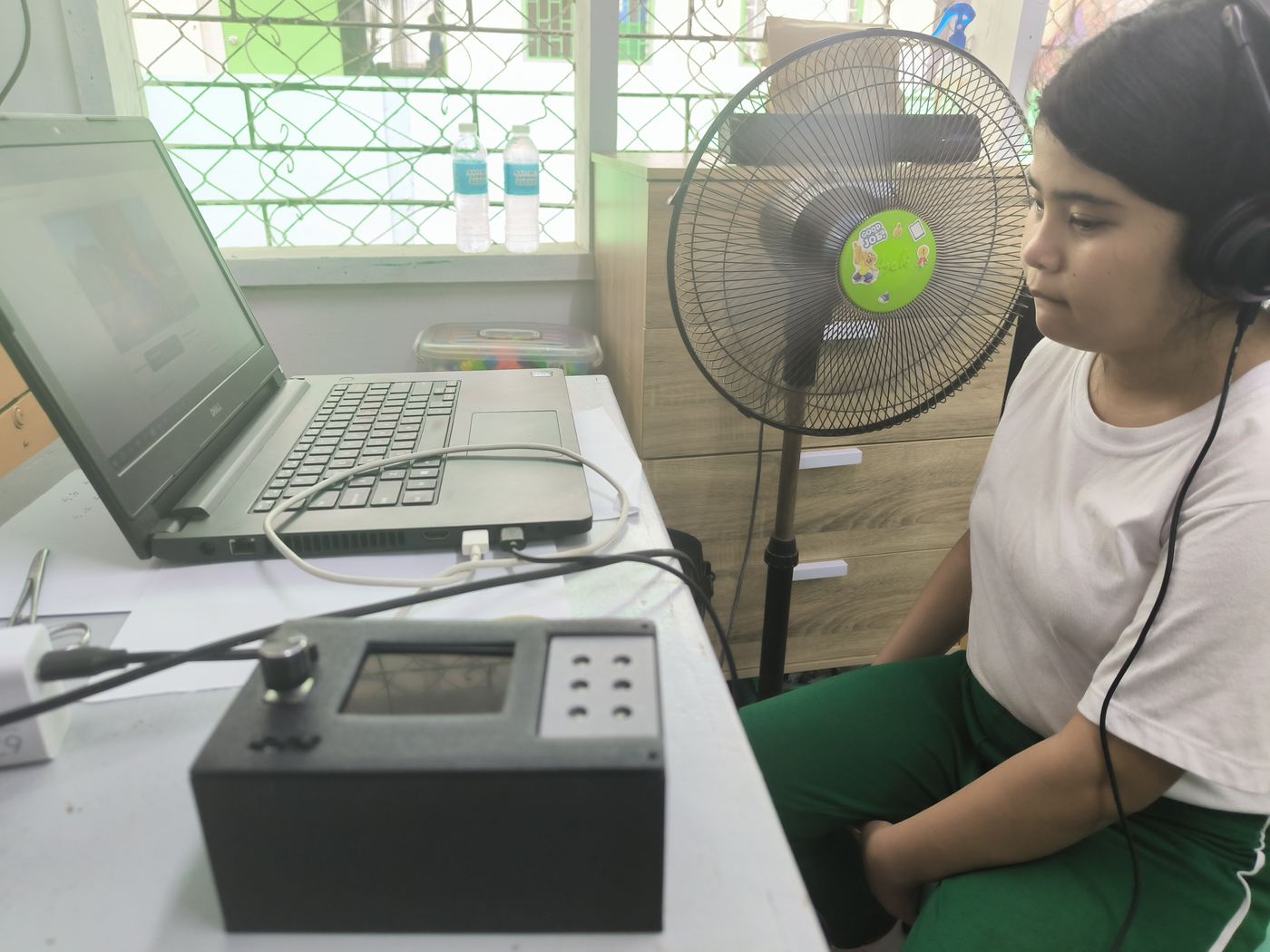
CineSense in use during the classroom pilot
About

Two platforms, one goal

Videos tell stories through more than dialogue. Both platforms use AI to turn on-screen action into short scene descriptions, then deliver them the way each viewer prefers.

A student wearing headphones listens to a video on a laptop, with the CineSense braille device on the desk.
Braille + Web

CineSense

Read scene descriptions on a refreshable braille device while you listen to the video.

  • AI scene descriptions from a YouTube link
  • Six-dot braille device with a dial and tactile buttons
  • Reading speed sets how detailed each description is
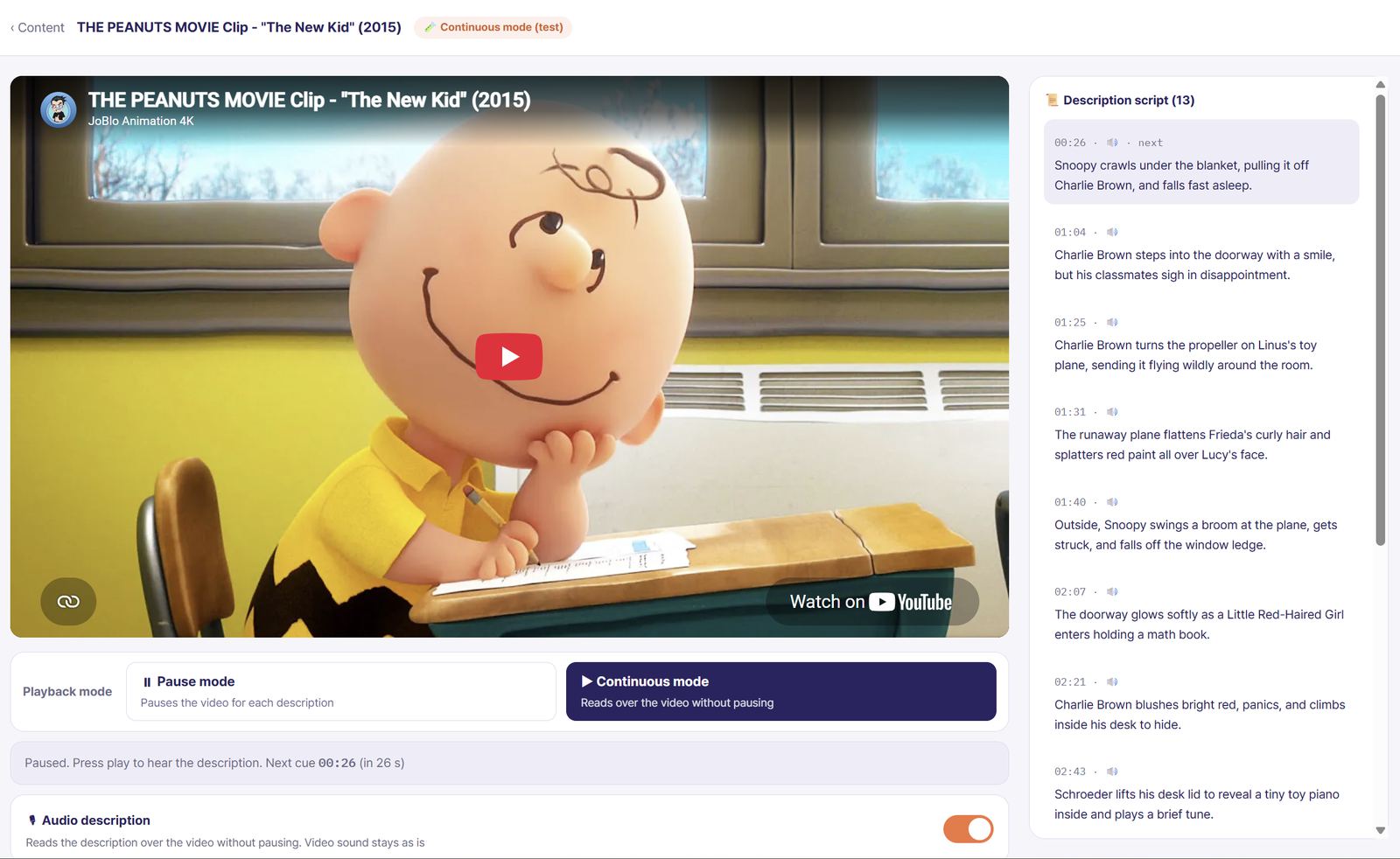
The Beff viewing screen with a video, a choice of pause or continuous mode, and a timed description script.
Voice + Community

Beff

Hear AI-written, volunteer-checked scene descriptions read aloud as you watch.

  • Voice description in pause or continuous mode
  • Volunteers review and admins approve every script
  • Accessibility board for barrier-free events
Platform · Braille + Web

CineSense

Scene descriptions you read with your fingertips while you listen.

Try now ↗
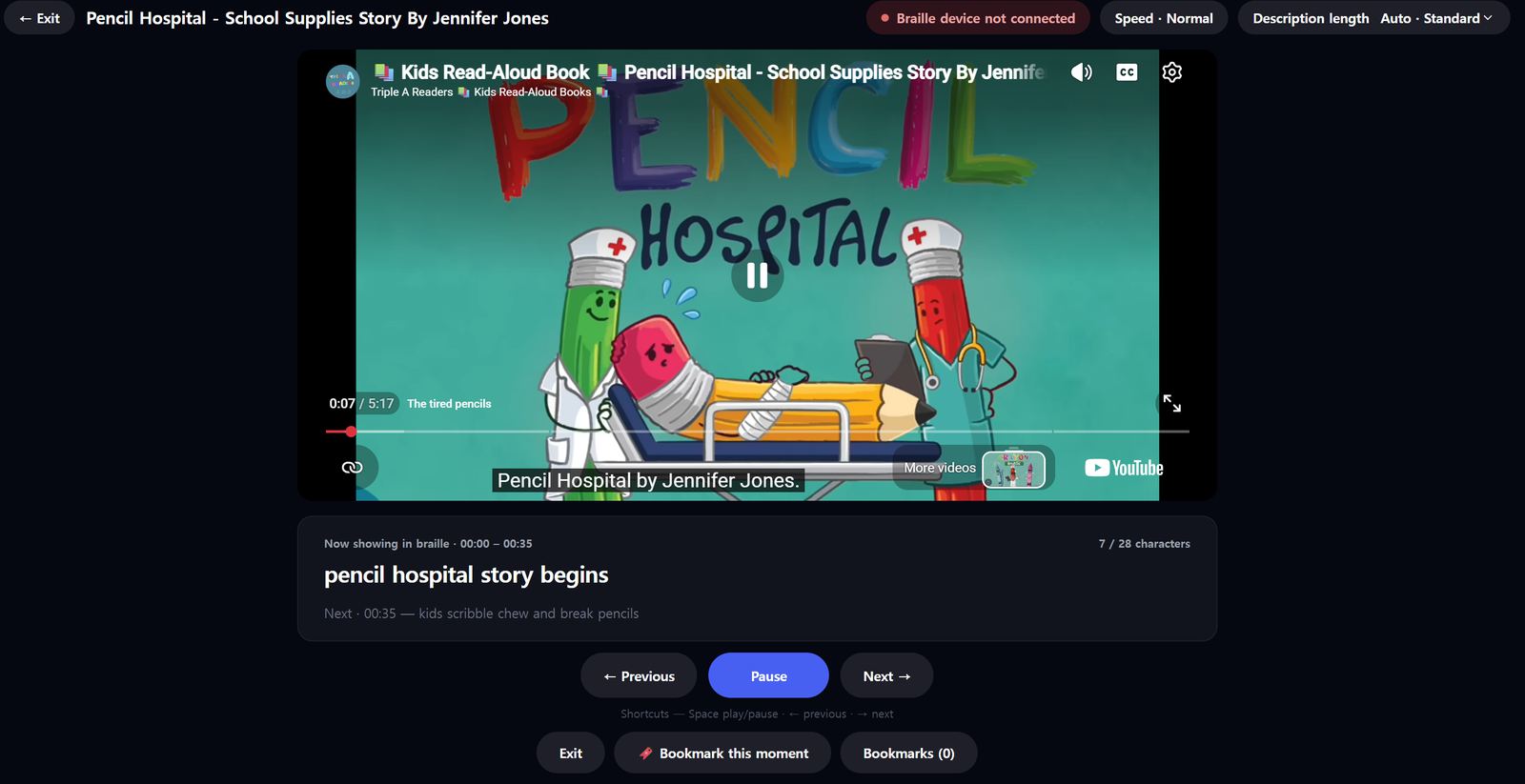
The CineSense viewing screen. Under the video: the description now showing in braille, the next description, and previous, pause, next and bookmark buttons.
How it works

Read the scene with your fingertips

CineSense pairs a USB braille device with a web platform. Paste a YouTube link and AI writes short descriptions of actions, expressions and settings. The descriptions reach the device in time with the video, so you read the scene while you listen.

  • Choose your mode: braille, audio, or both
  • Turn the dial to change reading speed, press it to pause
  • Bookmark a scene with one button and revisit it later
  • Quizzes after viewing check what you understood
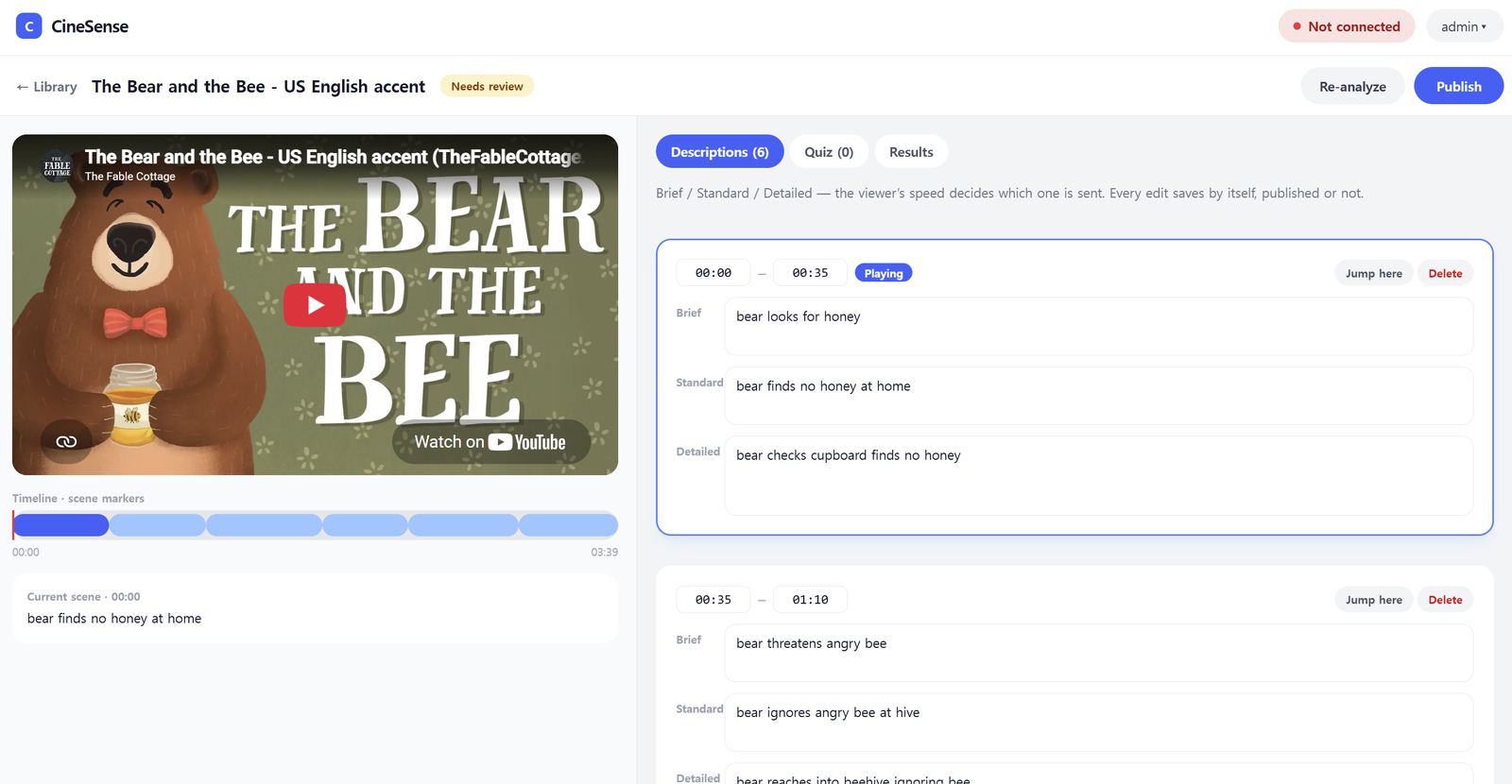
The CineSense editor, where each scene has brief, standard and detailed descriptions and a Publish button.
Content review

Reviewed before it plays

Caregivers and admins check every AI draft before it is published, fixing wording, length and timing in one screen.

  • Brief, standard and detailed versions for every scene
  • The viewer’s reading speed decides which version is sent
  • The library shows which videos still need review
CineSense hardware

The braille device and how it was built

A USB device built around an ESP32-S3. It shows scene descriptions as six-dot braille and has controls you can tell apart by touch.

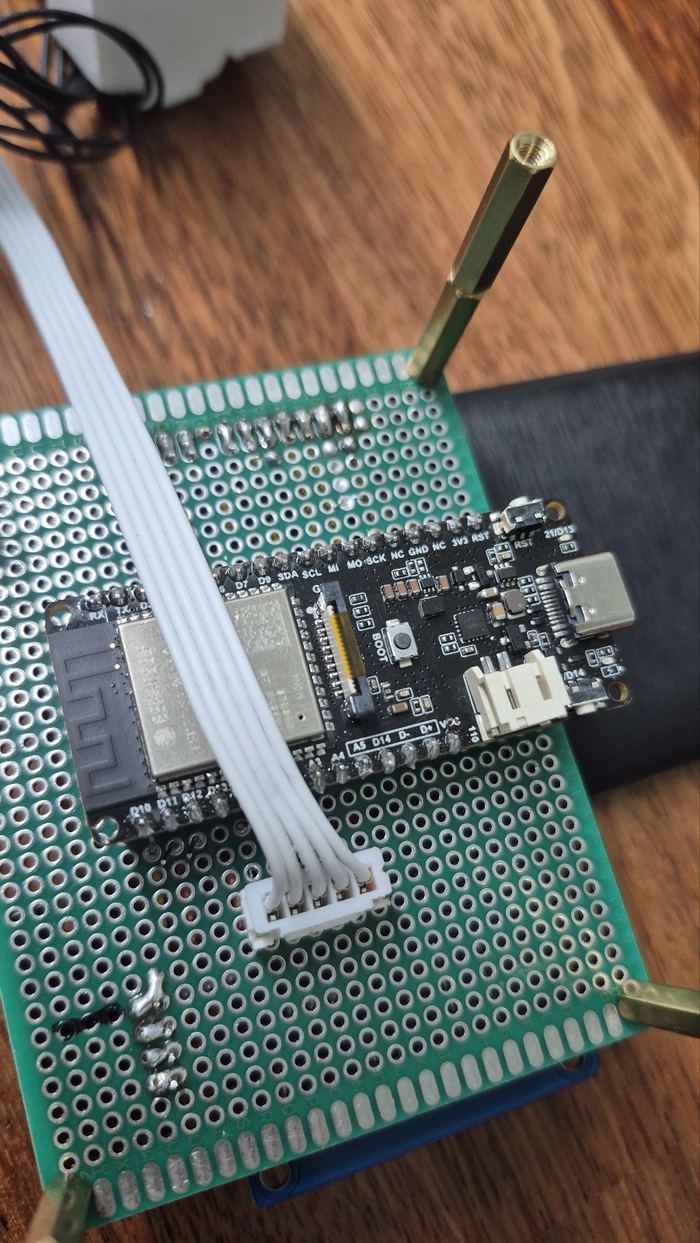
  1. An ESP32-S3 board mounted on a perfboard

    CircuitESP32-S3 wired on a perfboard

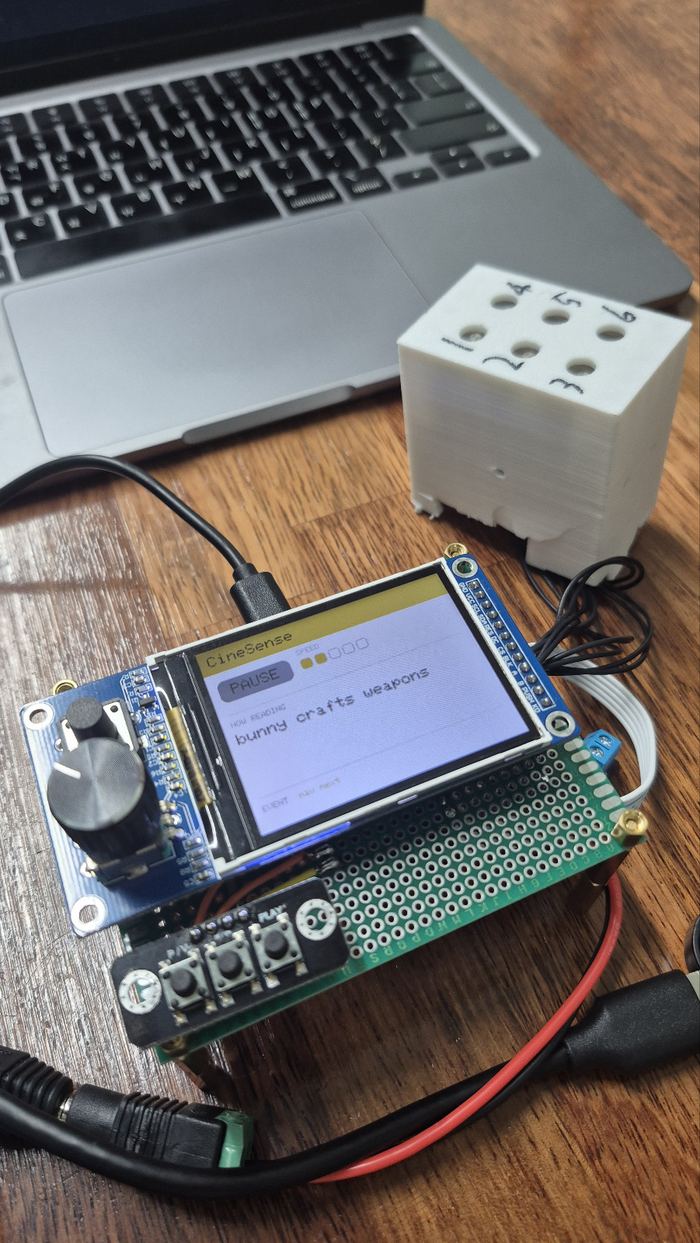
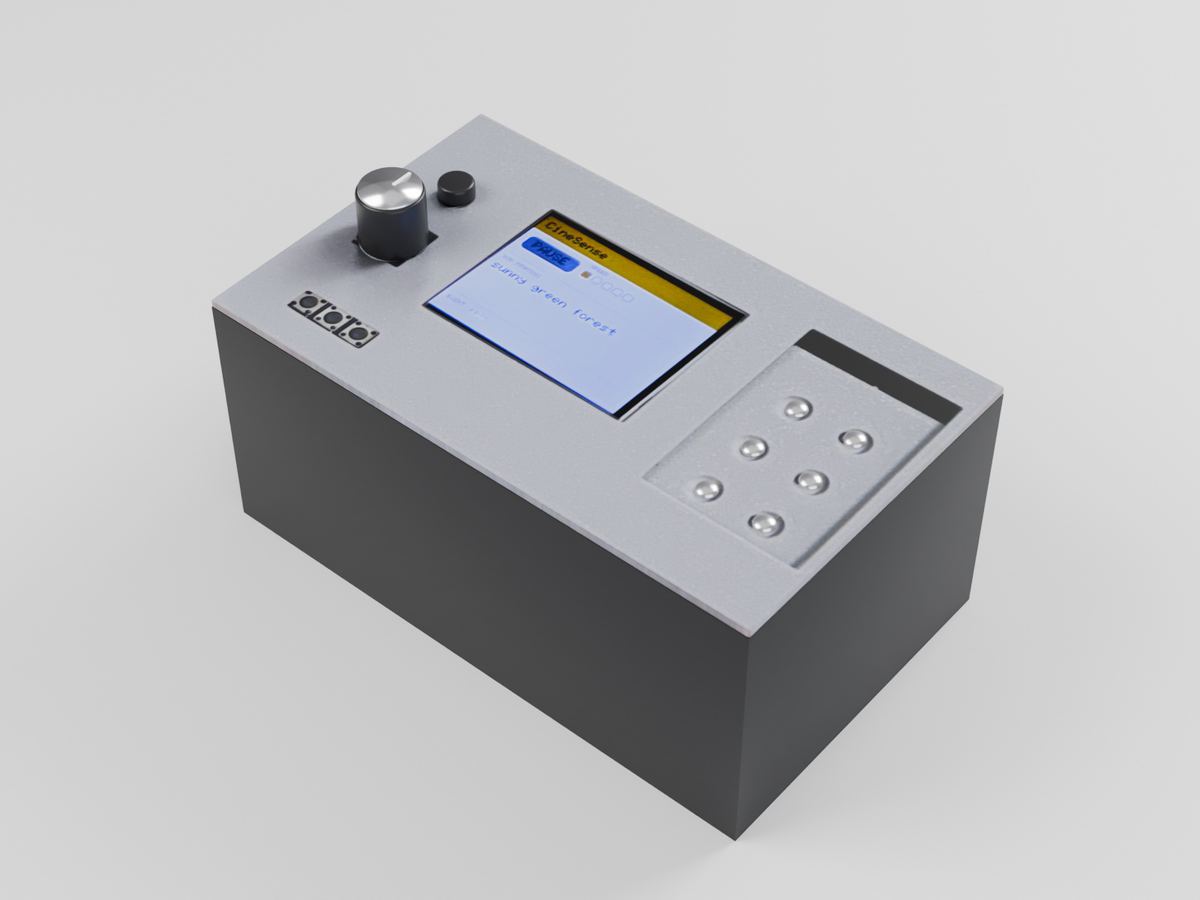
  2. Prototype with a status screen, dial and buttons, beside a white 3D-printed braille cell

    PrototypeScreen, dial and a 3D-printed braille cell

  3. TestingPrototype running with the web platform

  4. 3D render of the CineSense housing

    HousingEnclosure designed in 3D

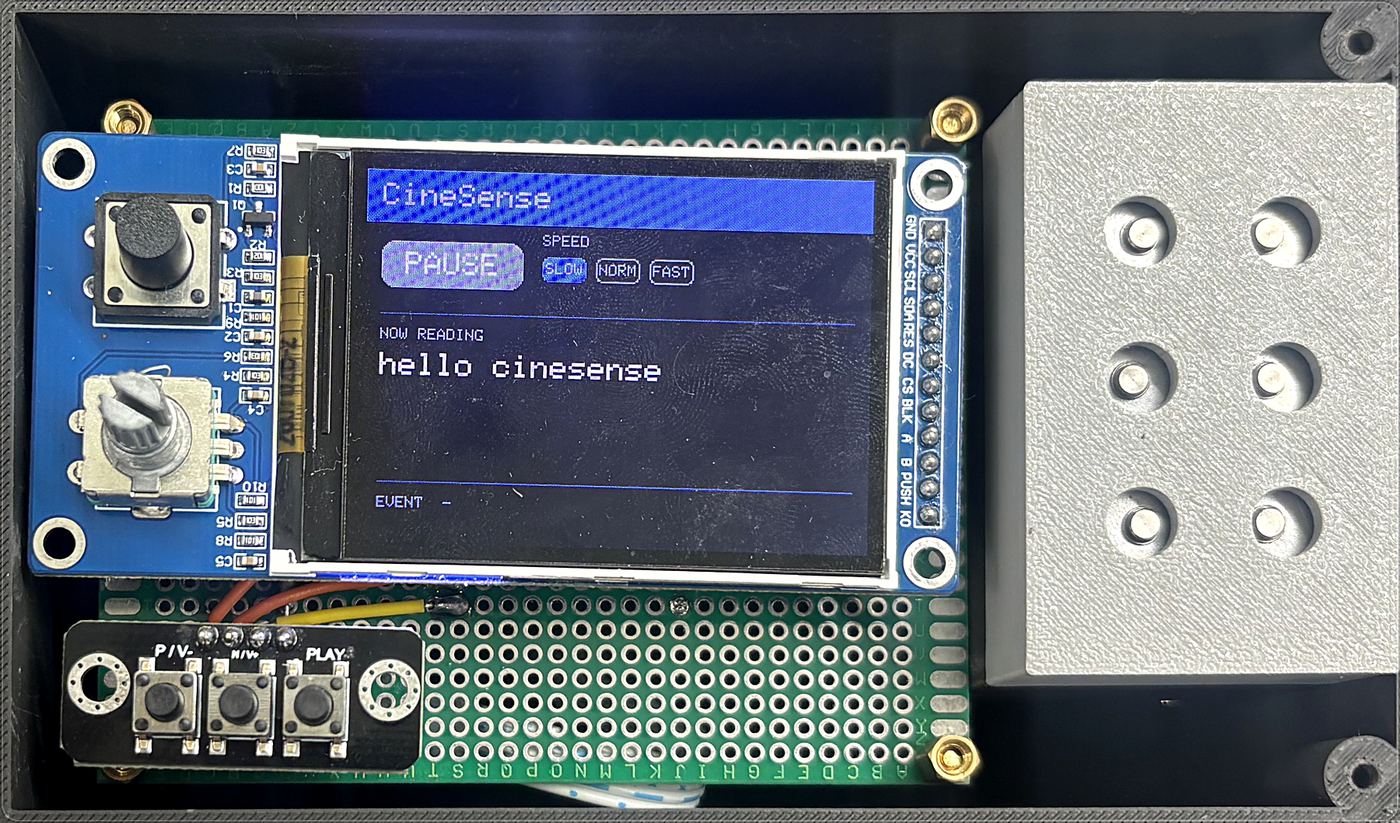
  5. Inside the housing: status screen, dial, three buttons and the braille cell block

    AssemblyParts fitted inside the case

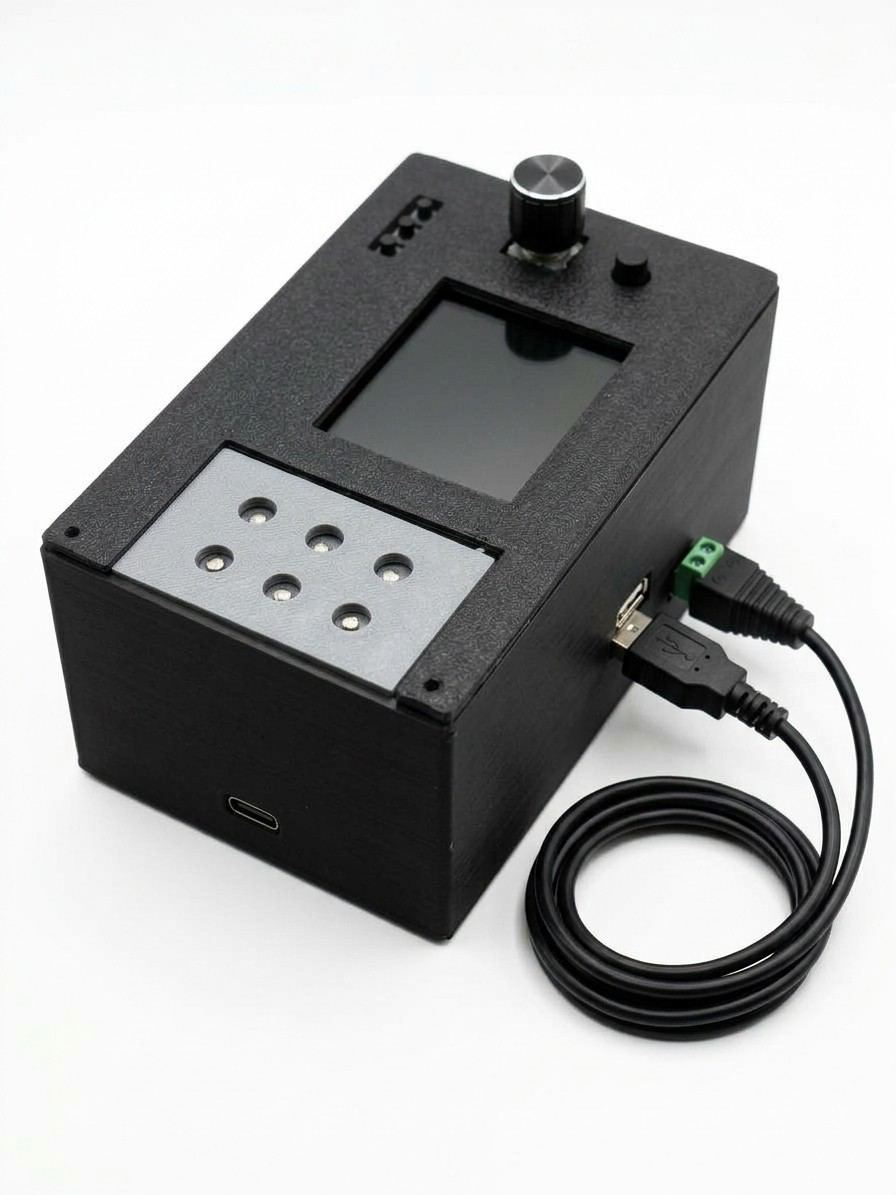
  6. The finished black CineSense device with a USB cable

    FinishedThe completed device

Platform · Voice + Community

Beff

Human-checked scene descriptions, read aloud as you watch.

Try now ↗
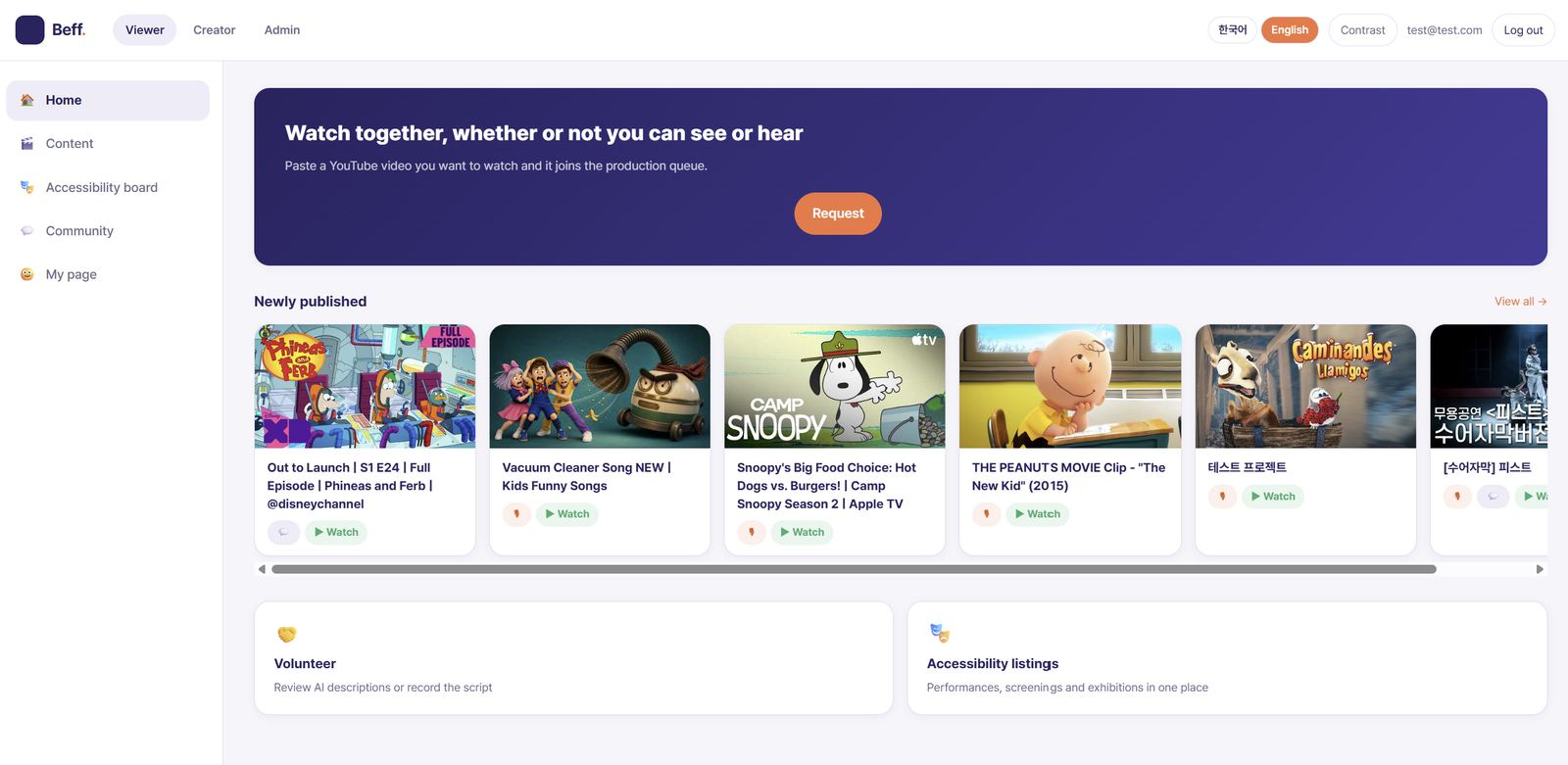
The Beff home screen with a Request button, newly published videos, and links to volunteering and accessibility listings.
How it works

Hear what the screen shows

Beff reads AI scene descriptions aloud while you watch YouTube. Every description is checked by a volunteer and approved by an admin before it goes live, so you only hear descriptions a person has checked.

  • Pause mode stops the video for each description
  • Continuous mode reads over the video without stopping
  • Request any YouTube video you want to watch
  • Accessibility board lists barrier-free shows, screenings and exhibitions
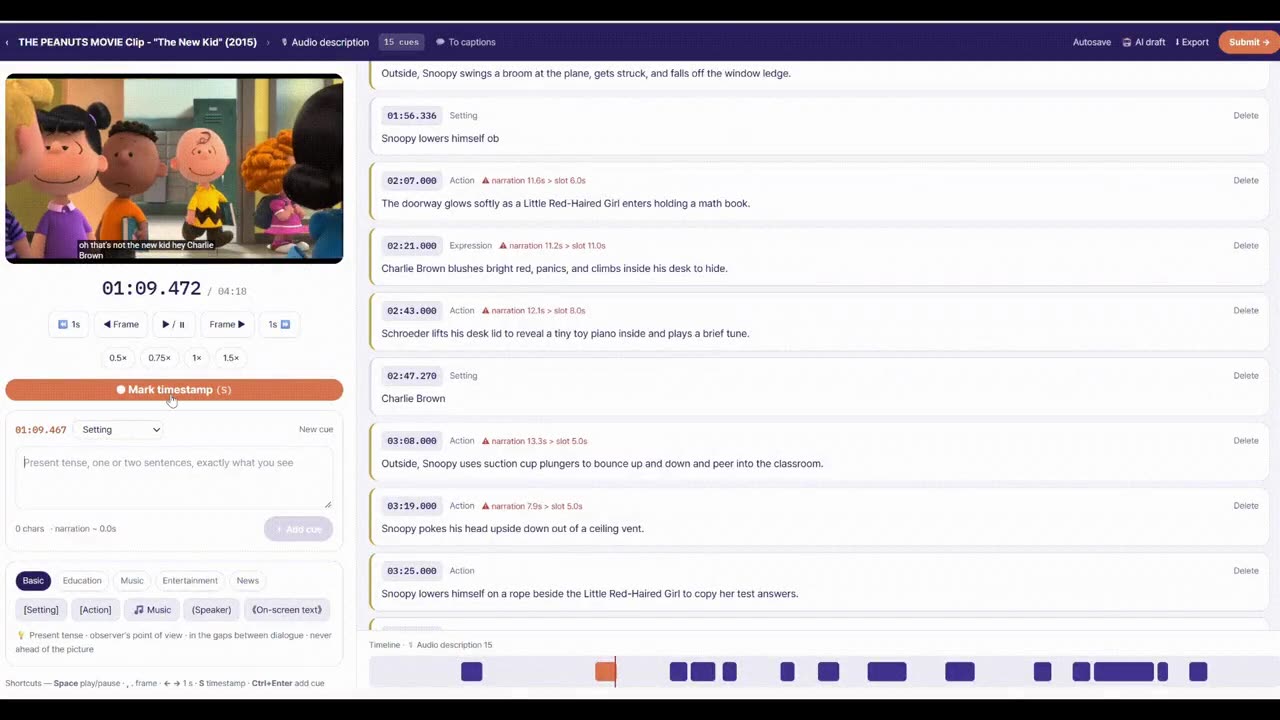
The Beff editing studio, with a video, a timestamp button and a list of timed description cues.
Roles

Viewer, creator and admin modes

Viewers watch and give feedback, creators and volunteers write and review descriptions, and admins decide what gets published.

  • Viewer: watch, request videos and join the community
  • Creator: editing studio, volunteer room and training
  • Admin: assign roles, approve and publish
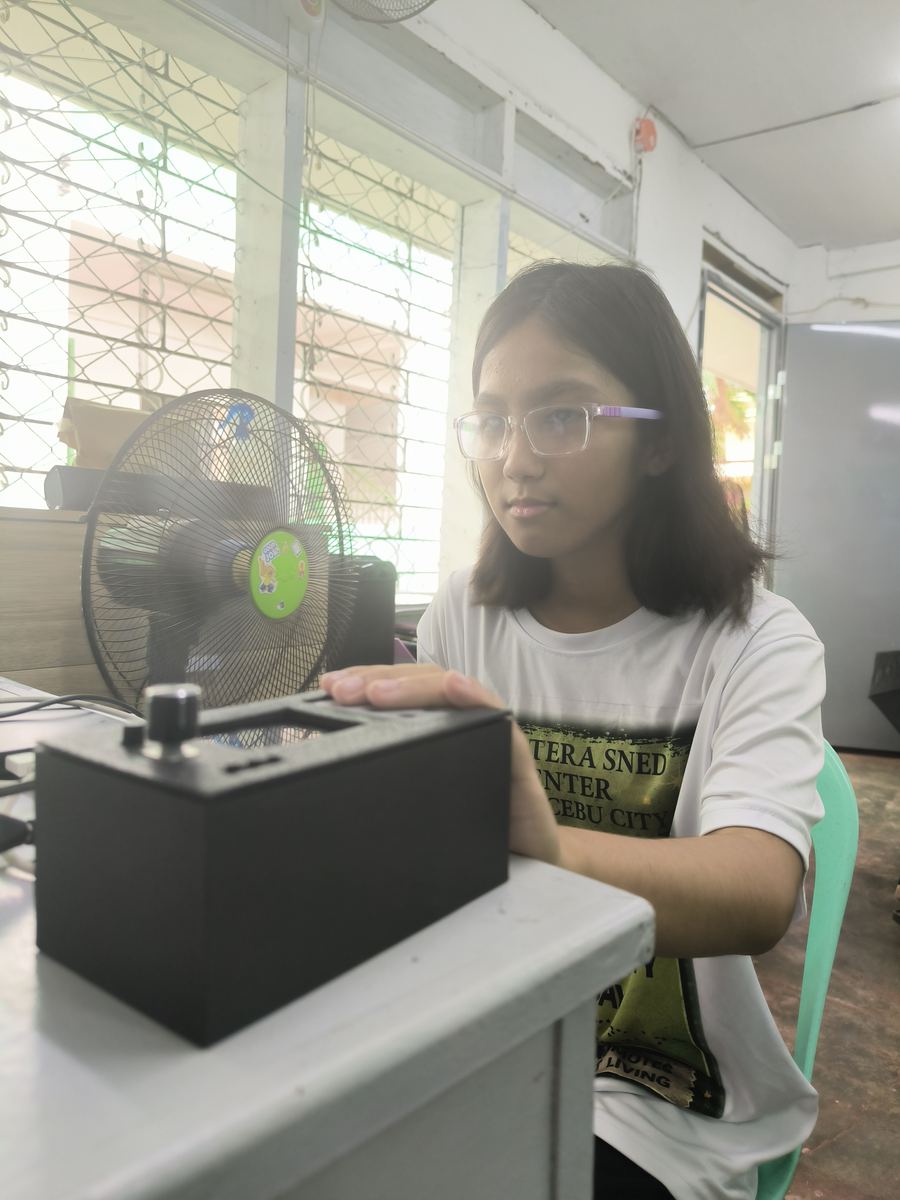
A student rests a hand on the CineSense device to read braille.
Why it matters

A story is more than its dialogue

Facial expressions, movement and scene changes carry much of a story’s meaning. Standard audio description also competes with dialogue for the listener’s attention. CineSense and Beff give blind and low-vision viewers two ways to get that information, so they can enjoy videos on their own terms.

  • Braille delivers descriptions without crowding the audio
  • Human review keeps descriptions accurate
  • Volunteers help make more videos accessible
Pilot run

Tested in the classroom at Zapatera Elementary School

In October 2026, students at Zapatera Elementary School in Cebu City, the Philippines, tried both platforms.

Student voice

In their own words

A student talks about watching videos with scene descriptions during the pilot.

Student, Zapatera Elementary SchoolCebu City, the Philippines · October 2026
Demo

See it in action

CineSense · Watching with braille descriptions and scene bookmarks (25 s, no sound)
Beff · Adding timed descriptions in the editing studio (48 s, no sound)
Get in touch

Let’s work together

Want to collaborate, run a pilot at your school, or try CineSense and Beff with your community? Send us a message and the team will get back to you.

  • Collaboration with schools, NGOs and researchers
  • Pilot runs in classrooms and learning centers
  • Demo accounts for both platforms
  • Volunteers who want to write or review descriptions

Message sent

Thank you for reaching out. We’ll reply to soon.